🔑
Getting Access
To get started, you need an invite from Anthropic to the Claude Console — this is the shared Praxent workspace where API keys are managed. Once you accept the invite and sign in, you can create a personal API key or begin using the console directly under our account.
If you previously signed up for Anthropic on your own before getting the Praxent invite, you may have a personal organization that is no longer in use. The steps below walk you through the invite flow — the screenshots will help you navigate if things look unfamiliar.
Don't have an invite yet? Ping #ai-office-hours in Slack and someone from the CoE team will get you added to the Praxent Console workspace.
🗝️
Creating Your API Key
Log in with your Praxent invite
-
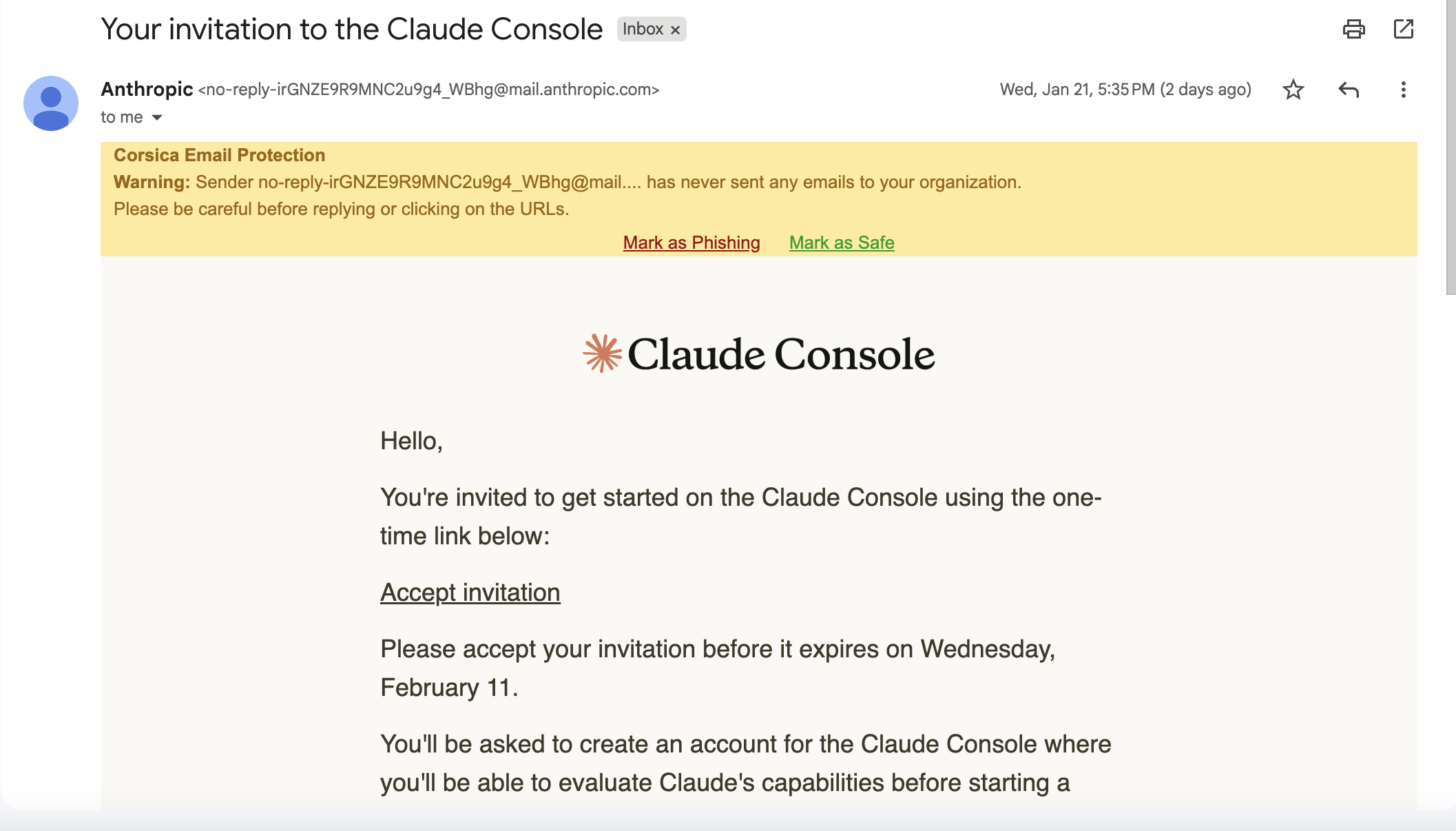
Click the link in the invite email.
-
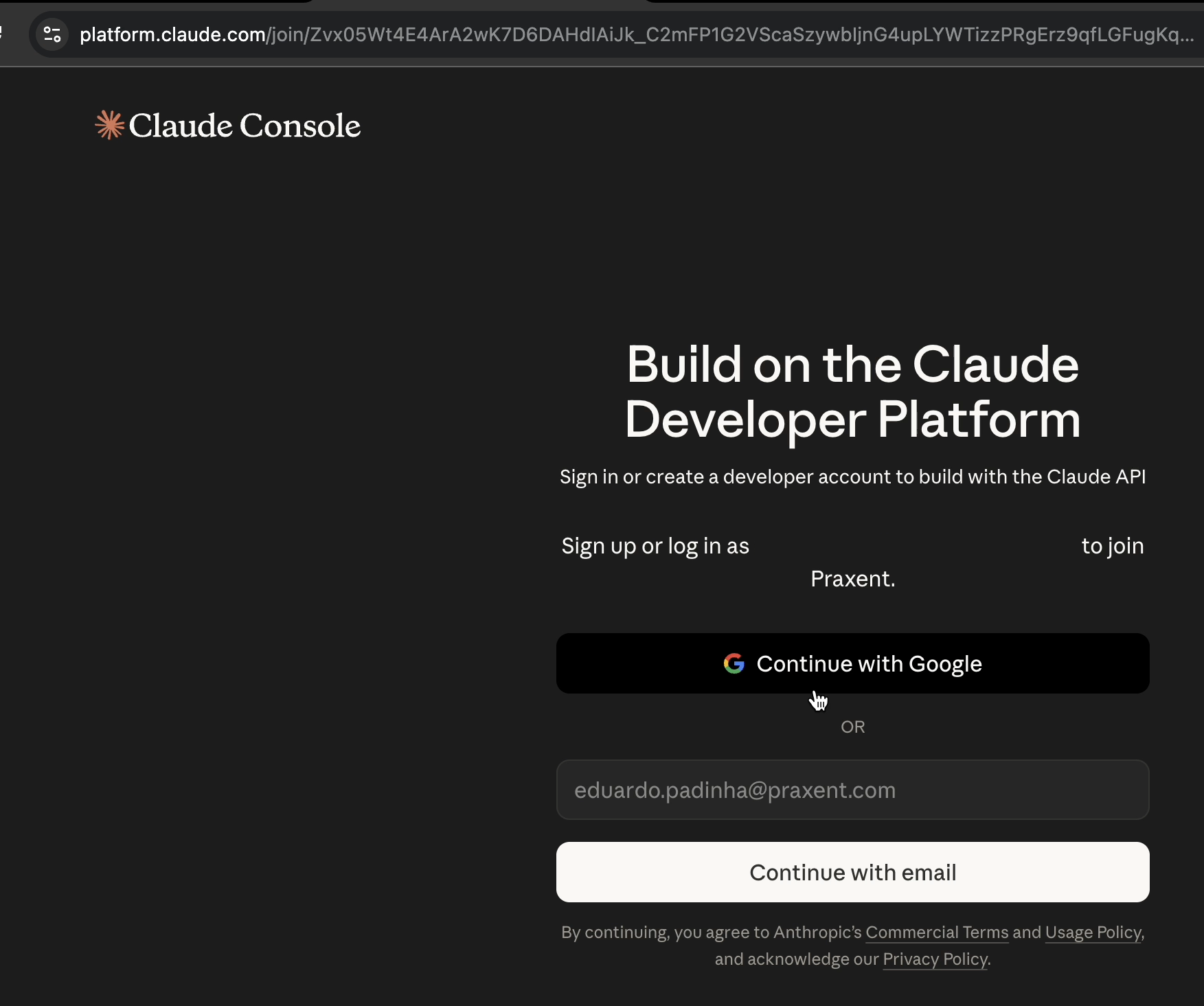
Sign in with your Praxent Google account — you'll land on the Praxent Console workspace.
-
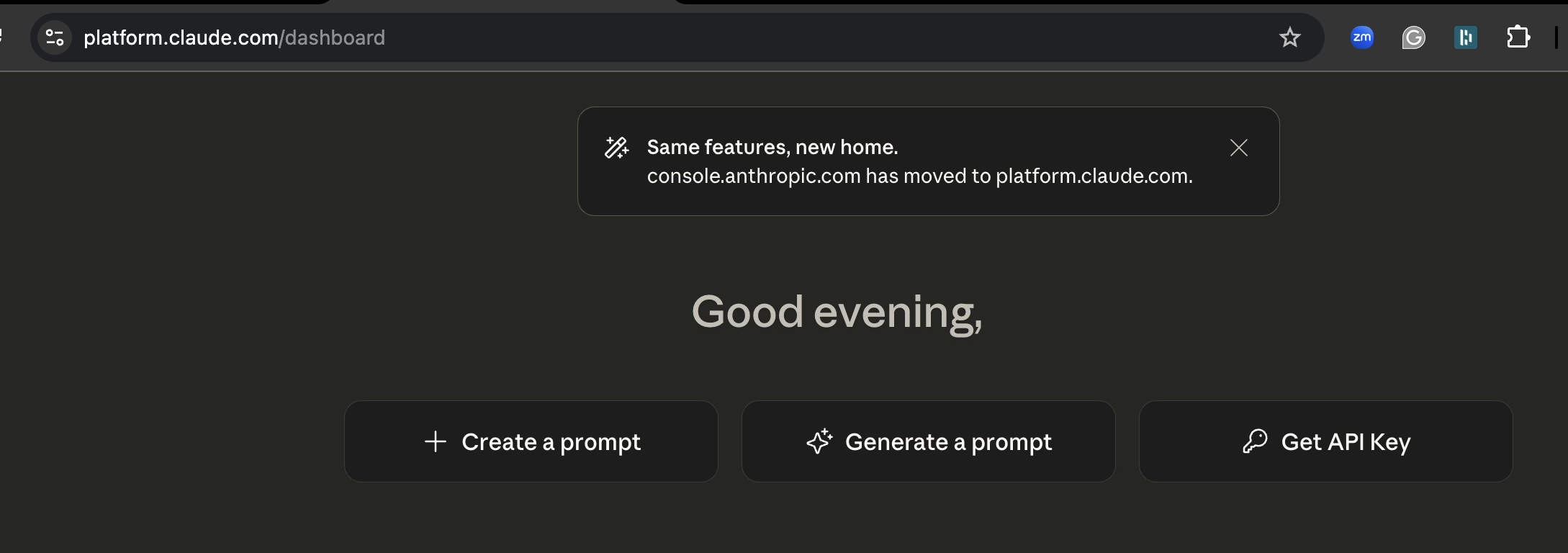
Click "Get API Key" from the Console home screen.
-
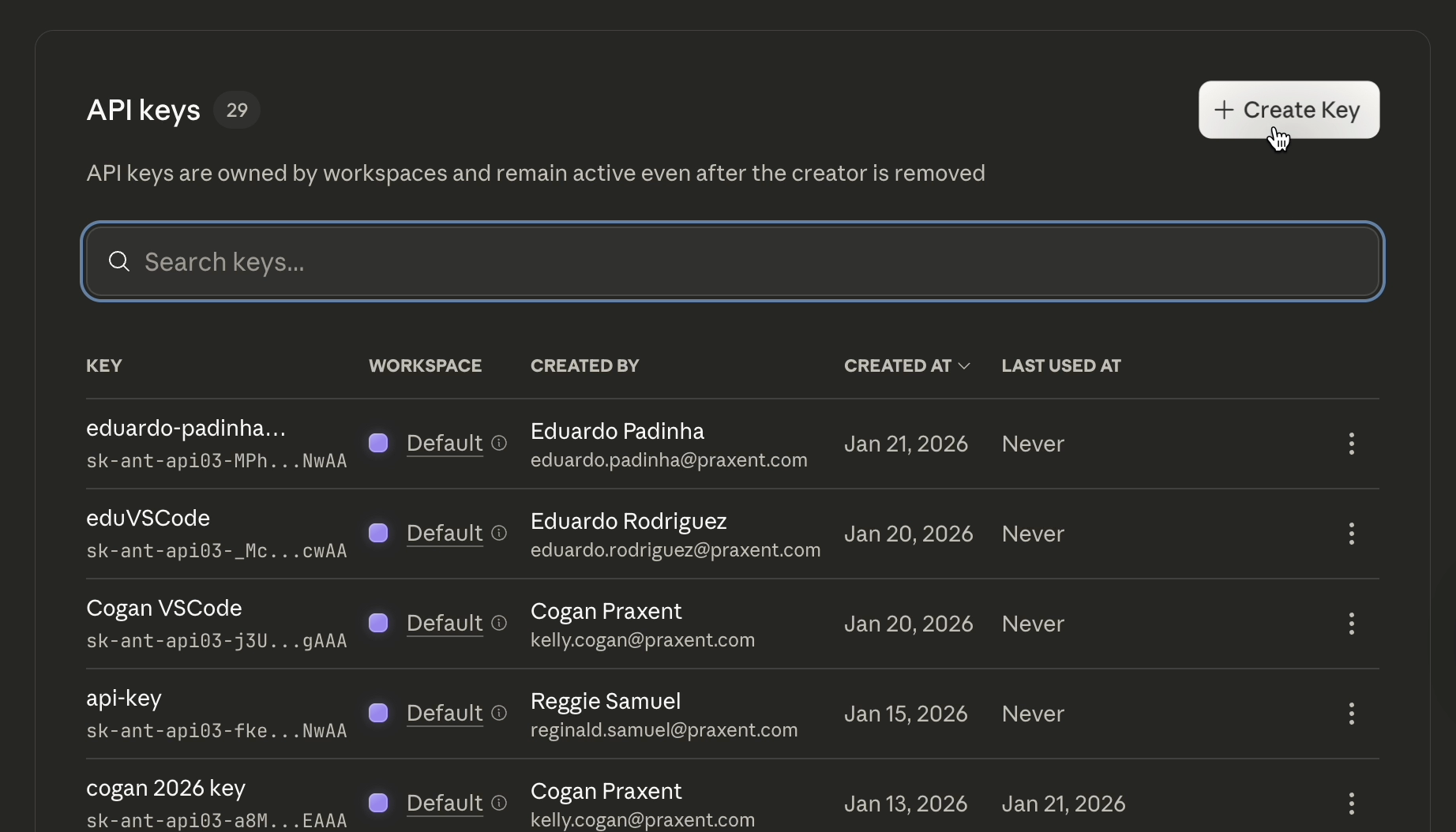
On the API Keys page, click "+ Create Key".
-
In the Default workspace, name your key using the format
firstname-lastname-purpose— where purpose isVSCode,ClaudeCode, or a client name. Then copy your key immediately — you won't be able to see it again. - Save your key to a protected location (a password manager works great). If you lose it, you'll need to delete the key and create a new one.
Copy your key before closing the modal. Anthropic only shows it once. If you navigate away without copying it, you'll need to delete that key and generate a new one.
📦
Install Claude Code
The recommended approach is to install Claude Code directly from the terminal. Native installs stay updated to the latest version automatically. Full setup docs from Anthropic are at code.claude.com/docs/en/setup.
Choose your platform
macOS / Linux — Terminal
curl -fsSL https://claude.ai/install.sh | bash
Windows — PowerShell
irm https://claude.ai/install.ps1 | iex
Windows — CMD
curl -fsSL https://claude.ai/install.cmd -o install.cmd && install.cmd && del install.cmd
Homebrew (
brew install claude) and WinGet are also supported if you prefer package managers.🚀
First Launch
- Open your terminal (Mac/Linux) or PowerShell (Windows) and navigate to a project folder. Claude Code can see that folder and everything under it — where you launch it is your working directory.
-
Type
claudeand press Enter. Claude Code will prompt you to authenticate. - When prompted, paste the API key you saved earlier. You're in.
Once installed, check out the Skills guide and MCP Integrations page to get the most out of Claude Code from day one.